In this material
The old Family Library Sharing, with authorized computers and a library that locked up the moment its owner launched anything, is gone. Its replacement, Steam Families, shares games between accounts instead of computers.
- 2013Family Library SharingSharing by authorized computer; the whole library locked while its owner played.
- March 18, 2024Steam Families in betaValve announces the new system as a beta.
- September 11, 2024Steam Families for everyoneThe new system replaces Family Library Sharing.
What changed: old Family Sharing vs Steam Families
Valve’s FAQ and launch announcements describe these differences:
| Mechanic | Old Family Library Sharing (2013-2024) | Steam Families (current) |
|---|---|---|
| Structure | Per-device authorization (specific computers) | Account-based family group, up to 6 members |
| Library access while owner plays | Entire library locked when the owner played anything | Members keep playing other games from the same library |
| Concurrency | One borrower at a time for the whole library | One player per owned copy, per game |
| Achievements and saves | Borrower’s own | Each member gets their own saves and achievements |
| Parental controls | Separate system (Family View, PIN-based) | Built in, per child account, managed remotely |
| Child purchases | Not supported | Purchase requests: child fills a cart, an adult approves and pays |
| Leaving | Deauthorize anytime | One-year cooldown before joining or creating another family |
The single biggest upgrade is the concurrency model. Under the old system, if the owner launched anything, the borrower got a few minutes to buy the game or quit. Under Steam Families, the shared pool works per copy: your brother can play your copy of Baldur’s Gate 3 while you play your own copy of Elden Ring, at the same time, from the same library.
Membership and shared games
- Members in a family
- up to 6
- Players per copy at once
- 1
- Countries per family
- 1
- Wait after leaving
- 1 year
- Lock on a vacated slot
- 1 year
Six members, adults and children. A Steam Family holds up to six accounts. Each member is either an adult or a child. Adults can invite and remove members, manage parental controls, and approve purchase requests. Children play what they are given access to and cannot leave the family on their own; an adult (or Steam Support) has to remove them.
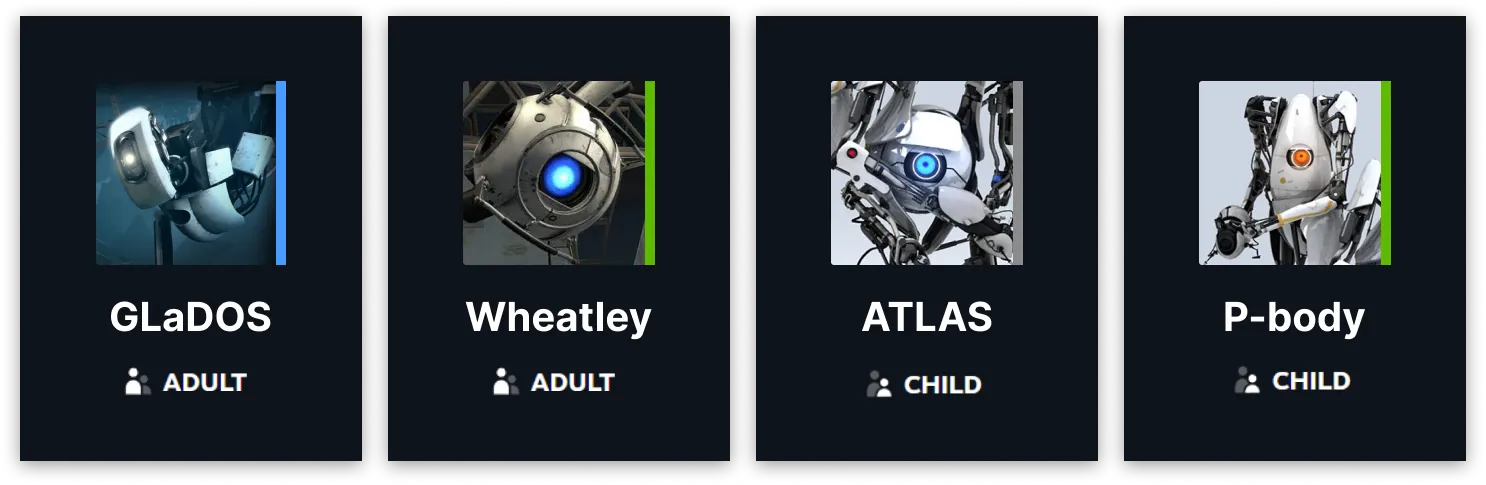
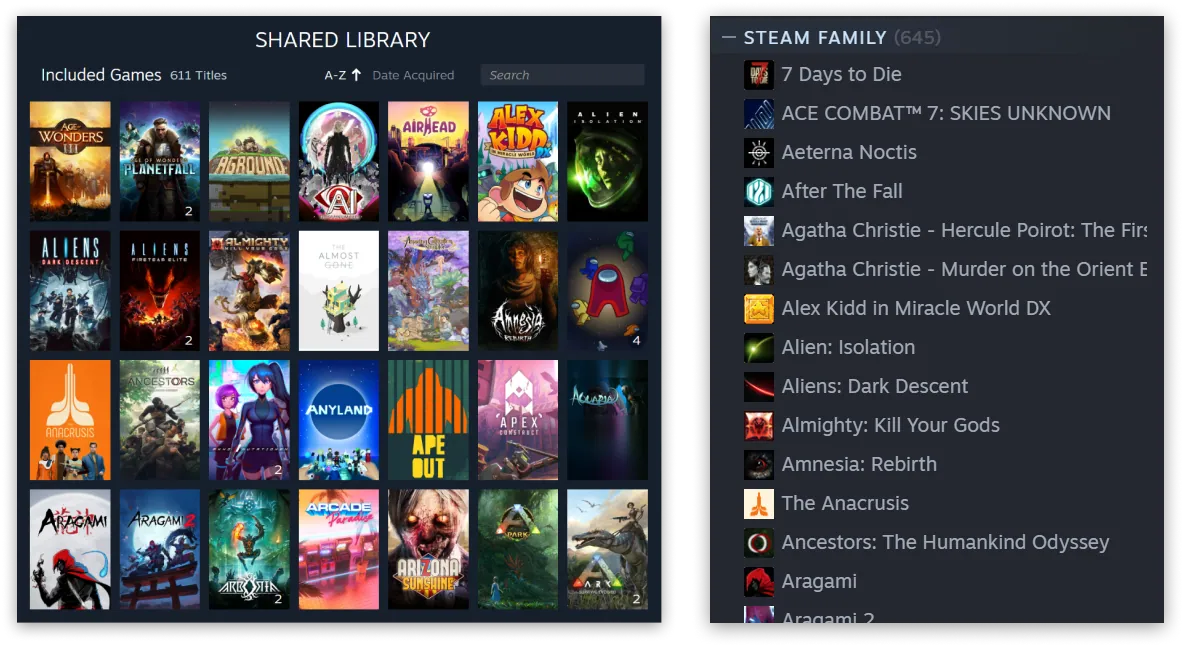
One library pool. Every member’s shareable games merge into a single family library. Members see each other’s games in their own library view, install them, and play with their own saves and achievements.
One player per copy. Any number of members can play different games from the pool simultaneously. Two members can only play the same game at the same time if the family owns two copies of it. Buying a second copy inside the family is the intended solution, and Valve says so explicitly in the FAQ.
Same country. Steam Families is designed for one household. All members should be in the same country as the person who created the family, and Steam checks store regions when someone tries to join. Cross-border families fail at the invite step.
Sharing keeps working while the owner plays. The owner playing one game no longer blocks the rest of their library. This was the headline feature at launch.
How to set up a Steam Family
The whole process takes about five minutes if everyone is in the same country and reachable.
- Update SteamDo it on your main account, then open Steam > Settings > Family.
- Create a familyClick "Create a Family" and name it. You become its first adult member.
- Invite membersInvite from your friends list or with an invite link, and choose whether each person joins as an adult or a child.
- Members accept the inviteEach invitee accepts from the notification in their client, on mobile or in the browser.
- Open the shared libraryShareable games of every member appear in everyone's library under the family filter. There is no per-computer authorization: sign in anywhere, including a Steam Deck, and the library follows the account.
If you only know someone’s profile URL or vanity name, resolve it to their account with our Steam ID Finder first and add them as a friend.
For child accounts, go to Settings > Family > [child’s name] and set parental controls: which games from the family library they can see and launch, daily playtime limits, store and community access, and whether they can send purchase and playtime requests. Adults approve those requests from the Steam mobile app or email, pay with their own payment method, and the game lands in the child’s account.
Before combining libraries, use the Steam Calculator to compare their size and value. Members do not need to own equal numbers of games.
Cooldowns when changing families
Changing families can trigger a cooldown for your account and for the vacated member slot:
| Action | Cooldown |
|---|---|
| Adult leaves (or is removed from) a family | Cannot create or join a new family until 1 year after they joined the previous one |
| A member slot is vacated | That slot stays locked for 1 year before a new person can fill it |
| Rejoining your most recent family | No cooldown, as long as it still has a free slot |
| Child wants to leave | No self-service; an adult removes them, or Steam Support does |
What cannot be shared
Not everything in a library enters the family pool. These categories have sharing restrictions:
- Free-to-play games. There is nothing to share; everyone already has access. CS2 falls in this bucket, which matters for the VAC discussion below. Deadlock, likewise free, is also outside the sharing system (our Deadlock beginner’s guide covers that game separately).
- Games that require a third-party account or launcher, such as titles tied to EA App, Ubisoft Connect, or Rockstar’s launcher. The Steam license shares, the third-party entitlement does not, so Valve excludes them.
- Games whose developers opted out of family sharing. There is no master list; the game simply will not appear in the family library.
- DLC, partially. You borrow a copy as-is: base game plus whatever DLC its owner bought. What you cannot do is own the base game yourself and borrow only someone else’s DLC for it.
- Non-game licenses like software, and anything region-restricted in a way that conflicts with a member’s store country.
If a game is missing, check whether its developer allows sharing and whether it requires a separate account.
VAC bans in shared games
Under Steam Families, if a family member cheats in a shared game and gets VAC banned, both the cheater’s account and the account that owns that copy get banned. The ban attaches to the accounts, not to the family, and it works exactly like a ban earned solo: permanent, not appealable.
The boundaries of the rule, as clarified by Valve staff in the Steam Families group:
- Pre-existing VAC bans do not spread. Adding someone who was banned years ago does not infect the family.
- Only the playing account and the copy-owning account are hit. Other members are untouched.
- This sharing rule does not apply to free-to-play games. Since CS2 cannot be shared, a CS2 cheater in your family gets only themselves banned. Their inventory still gets frozen, though; see our guide on cashing out CS2 skins for why a locked inventory matters.
Steam Deck, saves, and day-to-day use
Steam Families is fully account-based, so it behaves well on secondary devices. A family member’s Deck sees the shared library the same way their desktop does, and Steam Cloud keeps each member’s saves separate per account.
Offline play works with borrowed games, with the usual caveat that games requiring third-party servers still need a connection. If a launch fails and you suspect Steam itself rather than the family setup, check Is Steam Down or the full server status page before you start reinstalling things.
Troubleshooting
Check the error message against these common causes:
| Symptom | Likely cause | Fix |
|---|---|---|
| Invite fails or the join button errors | Invitee’s store country differs from the family creator’s | All members need matching regions; there is no workaround short of a legitimate country change after moving |
| “Create a Family” is missing or greyed out | You are inside another family’s cooldown window | Wait out the 1-year timer from when you joined the previous family, or rejoin that same family |
| A specific game is not in the family library | Developer opt-out, F2P title, or third-party account requirement | Nothing to fix; check the game’s store page for the family sharing note |
| “This game is currently unavailable” at launch | All owned copies of that specific game are in use | Wait, ask the other player to quit, or buy a second copy; other games in the library remain playable |
| Shared games vanished for one member | They were removed from the family, or a family member’s account has a restriction | Check Settings > Family membership status on both ends |
| Child cannot buy anything | Working as intended | The child sends a purchase request; an adult approves and pays from the mobile app or email |
| New member cannot be added after someone left | Vacated slot is on its 1-year cooldown | Wait for the slot timer; the returning member themselves can rejoin without penalty |
| Games launch but progress is shared or missing | Signed into the wrong account on a shared PC | Each member must use their own account; saves and achievements are per-member by design |
If the library has not updated after a membership change, restart Steam on both accounts to refresh its local state.
Strengths and limits of Steam Families
Pros
- Members share eligible games and keep their own saves and achievements.
- The owner playing one game no longer locks the rest of the library.
- Parental controls and purchase requests for children are built in.
Cons
- Two members can play the same game at once only if the family owns two copies.
- All members must be in the country of the person who created the family.
- Leaving starts a one-year cooldown for the account, and a vacated slot stays locked for a year.
- A VAC ban in a shared game also hits the account that owns the copy.
You still need a copy for each person playing the same game at once, unless that game provides another option such as a guest pass. Check the seasonal sales before buying extra copies, and see what the family actually plays in player counts and charts.